Welcome to the Enthuziastic Desktop App - your one-stop platform for interactive, engaging, and effective online learning experiences. Whether you're a student or a teacher our desktop app is designed to streamline your learning journey with easy access to live classes, class recordings, assignments, and communication tools – all from the comfort of your computer.
Sign Up & Sign In
This section provides a simple walkthrough for both new and returning users to access the Enthuziastic Desktop App.
New Users - If you're using the app for the first time, follow these steps to create your account:
- Click on the “Sign Up” button on the home screen.
- Fill in the required details – Email address, Username, and Password.
- Complete the sign-up process and you’re ready to start your learning journey.
Existing Users - Already have an account? Logging in is quick and easy:
- Click on the “Sign In” button.
- Enter your registered Email/Username and Password to access your account.
Quick Login Options - To make access even more convenient, the app also supports sign-in through: Google, Apple ID Or your regular Email login. Choose the method that suits you best and get started in seconds!
Home / Dashboard Screen
Once logged in, users land on the Home/Dashboard Screen, which acts as the central hub of the Enthuziastic Desktop App. It offers quick access to key features and a snapshot of your learning activities, making navigation seamless and intuitive. Key Elements on the Dashboard:
Home Button - Tapping this brings users back to the main dashboard view. It showcases:
- Recommended Courses (right side of the screen, can be scrolled vertically) based on your interests and learning history.
- FAQs and Helpful Resources to guide new users and resolve common queries.
This screen is designed to ensure that learners, teachers, and parents can get where they need to go in just a few clicks.
Inbox
The Inbox, accessible from the Home/Dashboard Screen, offers a centralized space where users can view all their enrolled course batches in one place. By selecting any batch, users can directly chat with their teacher, share assignments or doubts, access class recordings, report technical issues, and respond to feedback - all from a single, easy-to-navigate screen. This feature ensures that communication and course-related actions remain streamlined and efficient throughout the learning journey.
Profile
On the left-hand menu, clicking on your profile picture allows you to view and edit your profile details. You can update personal information such as your name, date of birth, address, a short bio, education, interests, work experience, languages spoken, and add your social media links. This section also lets you upload or change your profile image, helping you keep your profile personalized and up to date.

A complete profile helps us match you with the right teacher and offer a more personalized learning experience.
My Availability
The My Availability feature allows you to manage and communicate your preferred time slots within the app. You can easily mark your availability for Morning, Afternoon, Evening, and Night by opening or closing time slots based on your personal schedule. This helps our team match you with the most suitable teacher who’s available during your preferred hours. By clearly indicating when you're ready for sessions or activities, you stay in control of your learning pace and make the most of your time on the platform.
My Calendar
The My Calendar section offers a clear and organized view of your schedule, allowing you to see your upcoming sessions by day, week, or month. It displays the exact date and time of all scheduled classes across every batch you’re enrolled in, making it easier to manage your time and avoid missing any sessions. With this centralized calendar, staying on top of your learning commitments becomes effortless and efficient.
My Family
The My Family section in the desktop app allows you to view and manage existing family member profiles linked to your Enthu account. While you cannot add new members through the desktop version, you do have the ability to edit details such as name, interests, or learning preferences, and even remove a member if needed. This feature helps you keep your family’s learning profiles organized and up to date.
Editing a family member’s profile is simple and user-friendly. Just click on the member's profile from the My Family section, and you’ll see options to change the profile photo, update the relationship, and enable the minor login feature if applicable. Other details - such as name, interests, education, and languages can be edited in the same way as you would for the main profile. This ensures each family member’s information stays personalized and current.
Delete Family Account
If you wish to remove a family member’s profile from your account, the Delete Family Account option allows you to do so easily. Simply click on the “Delete Family Account” button under the selected profile, and when prompted, confirm your choice by selecting “Yes”.
Please note that this action is irreversible and should only be done if you're sure you no longer need the profile on your account.
My Coupons
The My Coupons section displays all the active coupons available to you from Enthuziastic. You can click on any coupon to view its details, including the courses or events it applies to, and copy the coupon code for easy use during checkout. This feature ensures you never miss out on special offers, discounts, or limited-time deals that enhance your learning experience.
Keep an eye on this section, new coupons are added regularly!
Learner Resources
The
Learner Resources section in the app provides a direct link to our dedicated support portal, designed to make your learning journey smoother and more efficient. When you click on this option, you’ll be redirected to
lnk.enthu.com/learner, where you can:
Feedback Form: The Feedback Form allows you to share your class experience, suggestions, or concerns directly with the Enthuziastic team. Whether it’s about a specific session, a teacher, or your overall experience, your feedback helps us improve and provide a better learning environment. We value your input and use it to continuously enhance our services.
Apply for Leave or Request a Schedule Change: If you’re unable to attend a scheduled session, the Apply for Leave or Request a Schedule Change feature allows you to submit a request directly through the app. Whether you need to skip a class or reschedule to a different time, this option ensures smooth communication with your teacher and helps maintain consistency in your learning without missing progress.
Raise a Ticket: Facing an issue? Quickly raise a ticket and our team will assist you.
Book a New Trial: Want to try a new subject or batch? Use this to schedule a trial session.
Use this portal anytime for quick access to essential learner tools and support!
Inbox
The Inbox section displays a list of all the course batches the learner is currently enrolled in. Each batch is shown as a card that highlights the batch name and a quick preview of the latest class update or communication. This makes it easy to stay informed, access important updates, and engage with your teacher - all in one place.
By selecting a specific batch from the Inbox, learners can access several useful features to stay engaged and informed. One key option is the ability to communicate directly with the teacher - you can easily send messages within the batch to ask questions, seek clarifications, or stay updated on important announcements. This ensures smooth and timely communication between learners and instructors, supporting a more personalized and responsive learning experience.
Summaries: After each session, a brief summary is added by the teacher, highlighting the key topics discussed, concepts covered, and any classroom activities that took place. This allows both learners and parents to stay informed and easily review what was taught, ensuring better continuity and understanding between sessions.
Schedule: Check the complete session schedule for the batch. You can download it to your phone or computer, or even print it for easy reference.
Share assignments or doubts: Easily submit your homework or share doubts to get quick guidance and feedback from your teacher. You can record audio or video messages, upload pre-recorded files, click and share pictures instantly, or even attach PDFs and other documents for better clarity.
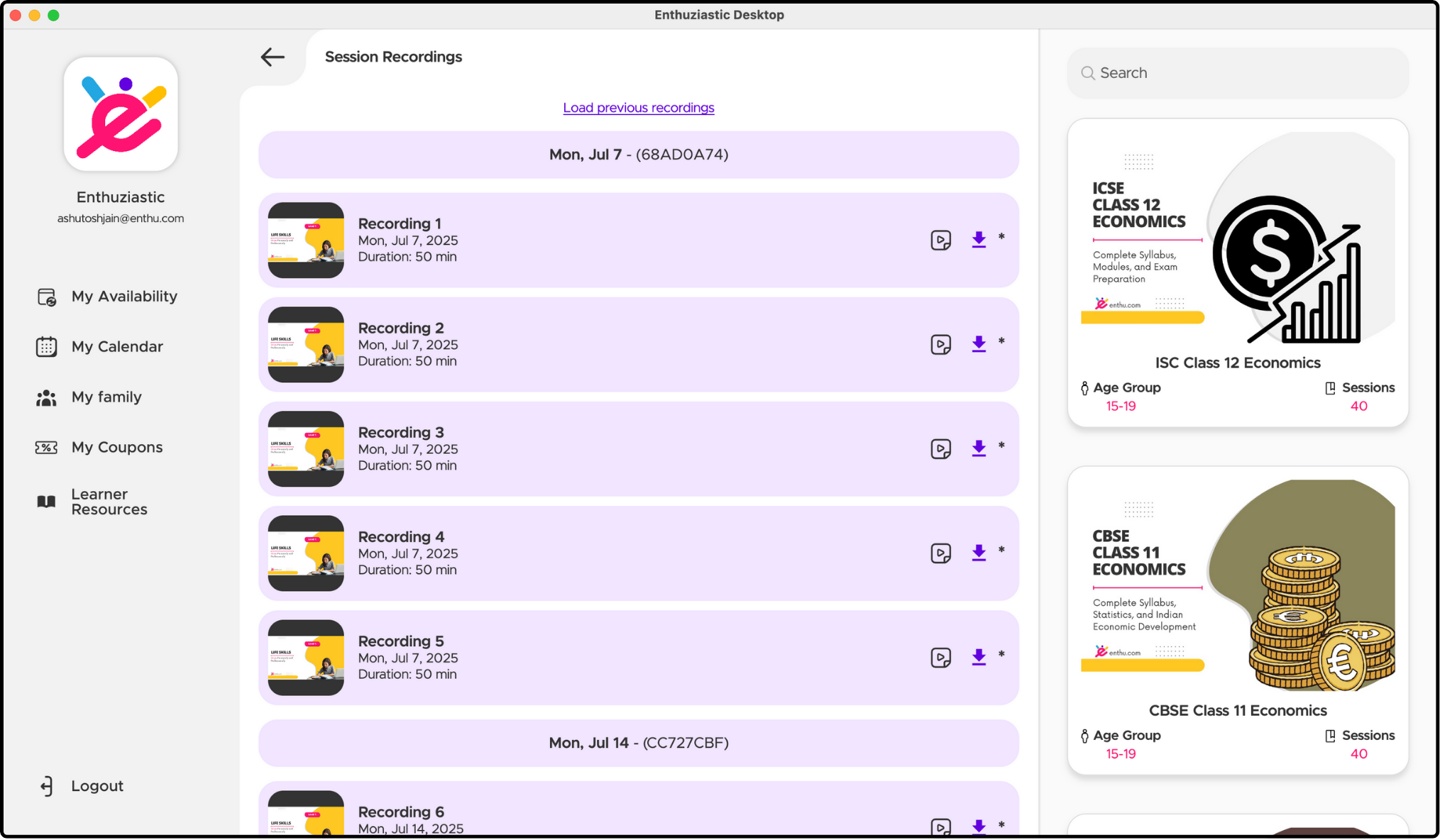
Session Recordings: The Session Recordings feature allows learners to replay past classes anytime, making it easy to revise key concepts or catch up on missed sessions. Whether you couldn’t attend a live class or simply want to review the material again, this feature ensures that your learning remains flexible and uninterrupted.
Frequently Asked Questions (FAQs)
How do I sign up for the Enthuziastic Desktop App?
Click on the Sign Up button on the login screen and fill in your email, username, and password. You can also sign up using Google, Facebook, or Apple ID.
Can I access the same account on both desktop and mobile apps?
Yes, your Enthuziastic account can be accessed across desktop, mobile, and web using the same login credentials.
How do I edit my profile details?
Click your profile picture from the left-hand menu to update your personal info, photo, bio, education, and more.
Is it mandatory to fill out my profile completely?
No, but it's highly recommended. A complete profile helps us understand your learning needs better and match you with the most suitable teacher.
Where can I see my upcoming class schedule?
Go to the My Calendar section to view your sessions by day, week, or month.
Can I watch class recordings if I missed a session?
Yes, all past session recordings are available in your Inbox under the specific batch.
How do I chat with my teacher?
Open the Inbox, select your batch, and use the message option to chat directly with your teacher.
Can I request a schedule change or apply for leave?
Yes, go to the respective batch in the Inbox and use the Apply for Leave or Request Schedule Change option.
How do I update my availability for classes?
Use the My Availability section to select your preferred time slots (Morning, Afternoon, Evening, or Night).
What is the My Family section used for?
It shows existing family members on your account. You can edit their details or remove a profile, but adding new members must be done outside the desktop app.
Can I use discount coupons in the app?
Yes, the My Coupons section lists all active coupons. You can click to view details and copy the code for use during checkout.
Where can I find help or support?
Visit the Learner Resources section, which links to lnk.enthu.com/learner for guides, videos, FAQs, and support tickets.
How can I share feedback about my class?
Use the Feedback Form option to share your experience, suggestions, or report concerns.
Can I manage multiple learner profiles in one app?
Yes, through the My Family section you can view and edit profiles of each learner associated with your account.
What should I do if the app is not working properly?
Try restarting the app or reinstalling it. Make sure you're using the latest version. If the issue persists, visit the Learner Resources page or contact support.